Android Police — Android — Sat, 29 Aug 2026 12:30:10 GMT
Summary
The article explains how to make large screenshot collections searchable using Google Photos' built-in tools. Google Photos can search for text inside screenshots—supporting exact-phrase searches with quotation marks—but the images must first be backed up, which users can verify under Photos settings > Backup > Default backup > Device folders by ensuring the Screenshots folder is included. The Gemini-powered Ask Photos feature enables conversational searches and lets users ask questions about individual backed-up images, while captions added via the three-dot menu's About section make noteworthy screenshots easier to find later. The article also recommends Google Lens, accessible from a screenshot's menu, for copying or translating text, searching for items shown in an image, or running visual searches on selected portions of a screenshot.
I had so many screenshots in Google Photos that finding the one I needed became a chore.
Receipts, addresses, recipes, product pages, and random bits of information I wanted to remember were right there, mixed in with everything else.
Deleting them wasn't much of an option either. A lot of those screenshots were things I knew I'd need again someday.
Then I realized I could make Google Photos do the searching for me.
Instead of scrolling through hundreds of screenshots, I started using a few simple tricks to find the exact information.
Google Photos can search for text within photos, which means I can type a word or phrase from a screenshot into the Search box and find images containing that text. For an exact match, I can put the phrase in quotation marks.
That makes a huge difference when my screenshots are full of random information.
If I save a screenshot of a product page, for example, I can search for the product name instead of scrolling through months of screenshots trying to spot it.
On Android, open Google Photos, tap the magnifying glass icon, and type what you're looking for.
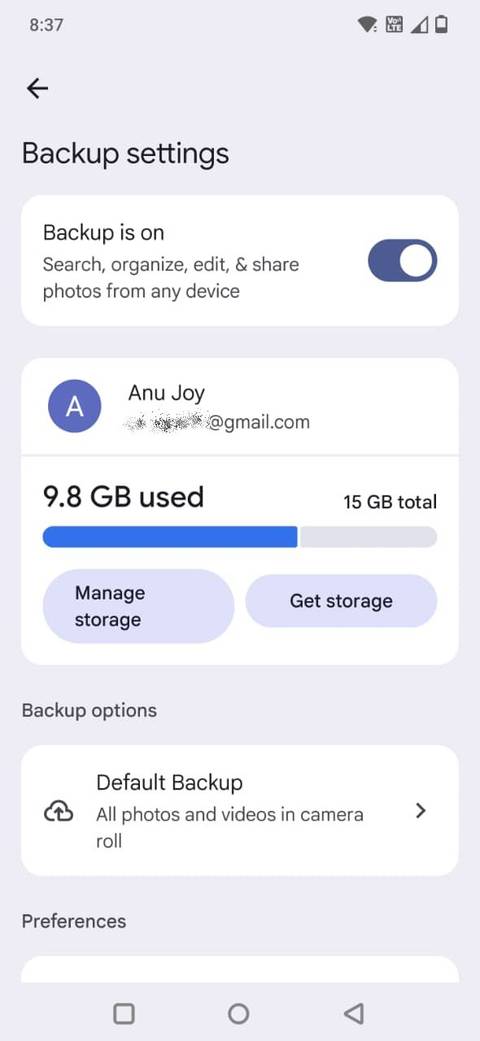
A screenshot can appear in the Google Photos app even if it hasn't been uploaded to your Google Account, but you can only search backed-up photos.
In Google Photos, you can check Photos settings > Backup > Default backup > Device folders and make sure your Screenshots folder is included.
After they're backed up, those screenshots become part of your Google Photos library, and you can find them using Photos' search tools.
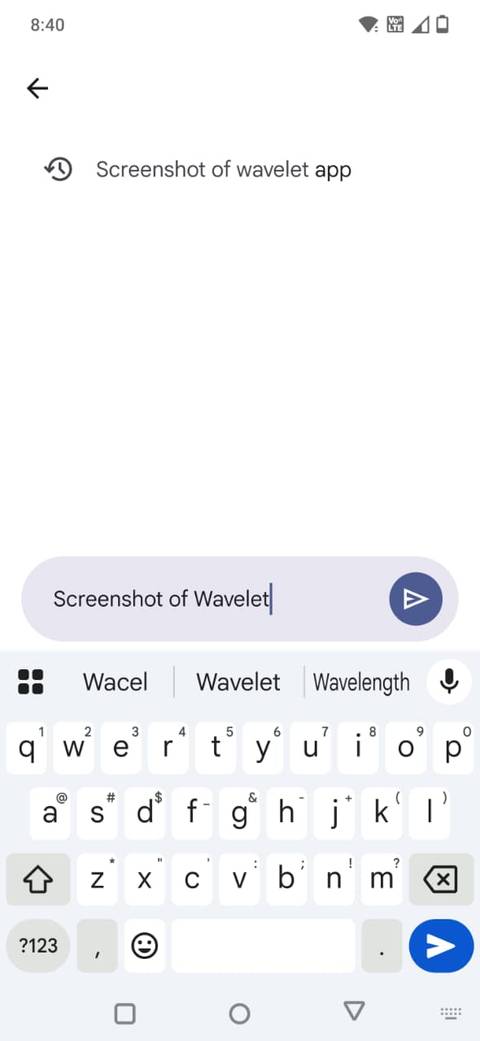
Text search is what made me start looking through my screenshots differently, but Google Photos can go beyond exact keywords. I can search for people, places, objects, documents, and other things in my library.
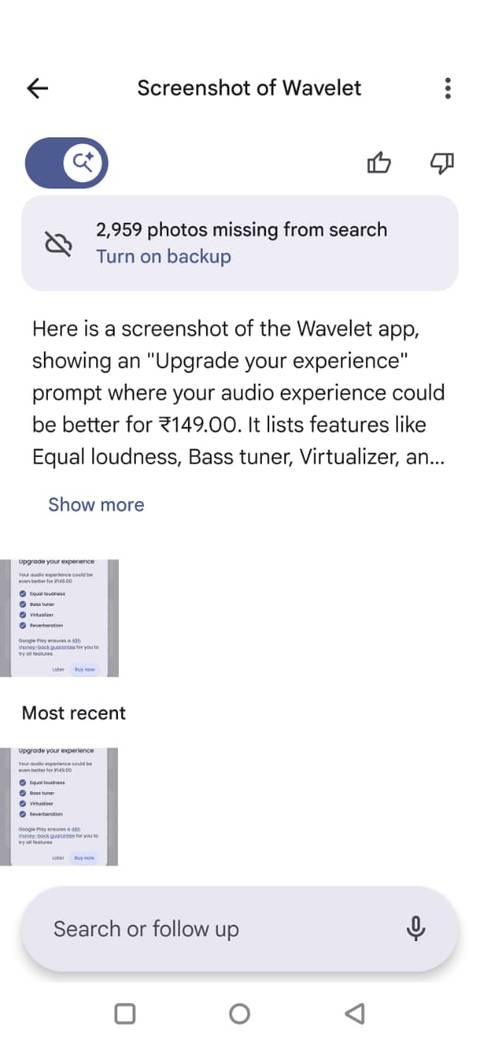
But the more interesting option is Ask Photos, Google's Gemini-powered conversational search. Instead of guessing the exact keyword Google Photos needs, I can describe what I'm looking for.
I can also open an individual backed-up screenshot, tap Ask, and ask questions about that specific image. I can continue the conversation with follow-up questions if the first answer isn't what I was looking for.
After I realized I could search my screenshots, I started thinking about the ones that might be difficult to find later.
A screenshot of a receipt is easy enough to identify, but a random page I saved because it had useful information might not be.
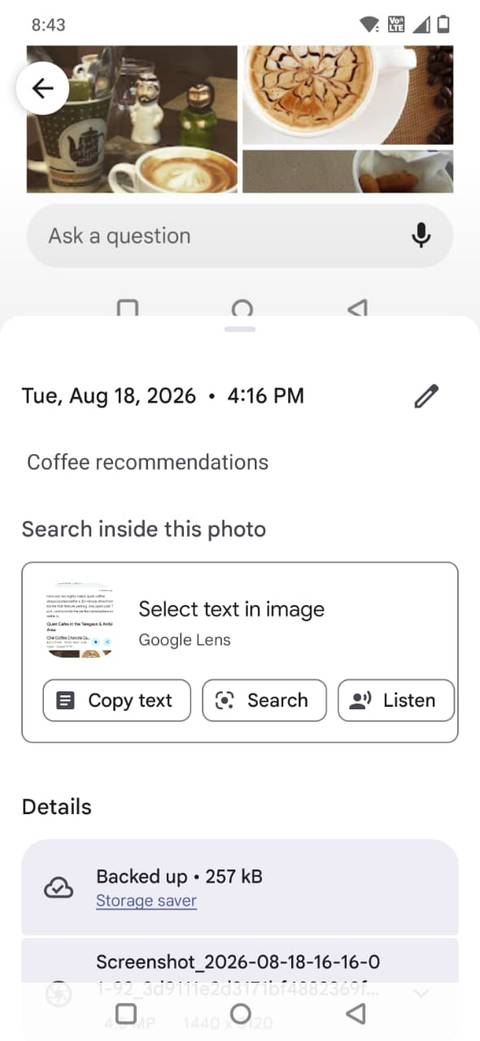
That's where captions come in. In Google Photos, I can add a short description to a screenshot so I can find it later.
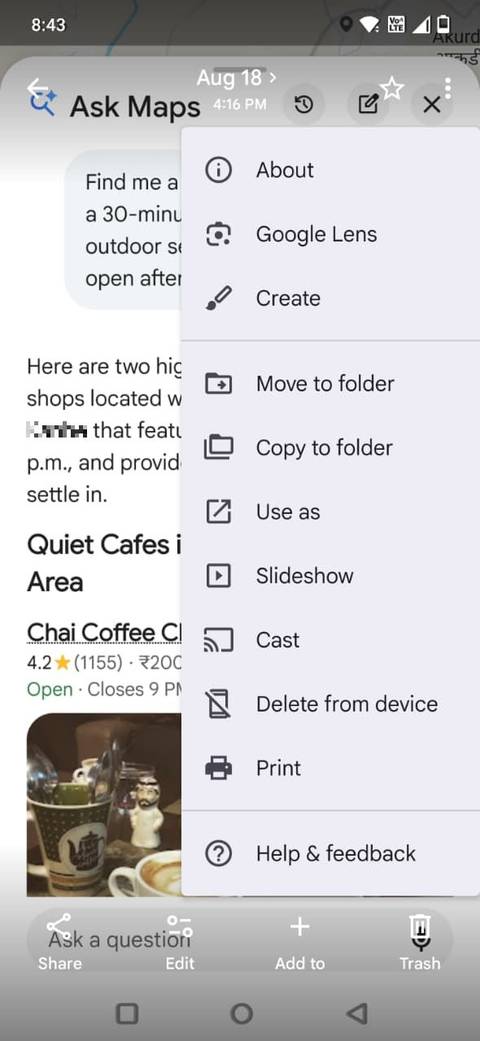
On Android, I open the screenshot in Google Photos, tap the three-dot menu icon, select About, and tap Add a caption. I can also swipe up on the image to open its details and add the caption there.
I don't need to write anything elaborate. Captions such as "restaurants I want to try in Spain" or "headphones return policy" make it easier to search for them later.
Google Photos search is great when I know roughly what I'm looking for, but sometimes I have a screenshot and want to pull useful information out of it. That's where Google Lens comes in.
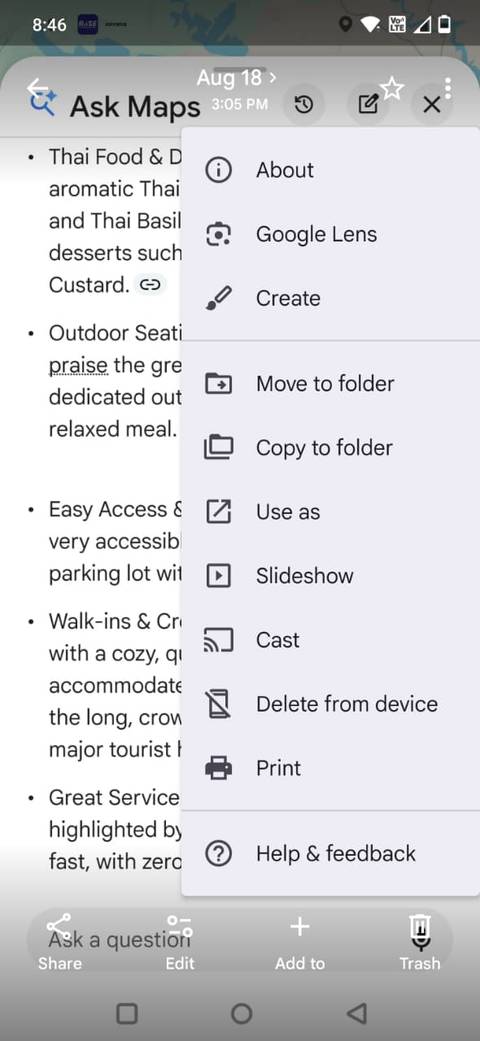
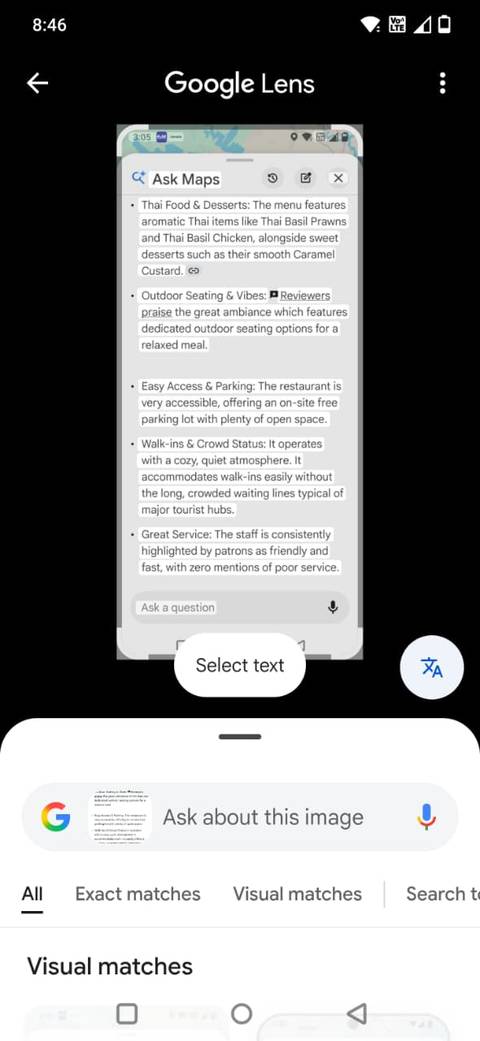
From a screenshot in Google Photos, I can open the image, tap the three-dot menu icon, select Lens, and it analyzes what's on the screen.
I can select and copy text, translate it, search for something shown in the image, or even find similar products.
That's particularly useful for screenshots of things like product pages. Instead of trying to remember the product name, I can select the relevant part of the screenshot with Lens and search for it.
It also lets me select part of an image when doing a visual search, which is handy when a screenshot contains unrelated information.
I also like it for screenshots containing text I want to reuse. I can open the screenshot in Photos, launch Lens, tap Select text, choose what I need, and copy it.
I used to see my growing collection of screenshots as clutter I would eventually have to clean up. Now, I don't feel nearly as much pressure to delete them.
Google Photos can search for text inside backed-up screenshots, and I can add captions to important ones to make them easier to find.
Google Lens is another useful option when I need to copy text, identify something, or search for what's shown in a screenshot.
I still take too many screenshots, but at least I don't have to remember where I put them anymore.
Original article: https://www.androidpolice.com/google-photos-finally-made-hundreds-of-screenshots-useful/ Source: Android Police