Android Police — Android — Sat, 29 Aug 2026 19:00:10 GMT
Summary
This article outlines four settings changes to make Google Gemini more productive: enabling Extended Thinking for complex problem-solving tasks, connecting apps like Google Workspace, WhatsApp, Maps, and Spotify through Settings > Personal Intelligence > Connected apps, using Scheduled Actions to automate recurring requests such as weekly briefings, and building single-purpose custom Gems preloaded with specific instructions for repeated workflows. The author cites examples such as using Extended Thinking to correctly build a nested Excel formula, pulling invoice details from Gmail via @-mentions, and automating a Saturday NFL briefing. According to the article, these adjustments take under 15 minutes to configure and reduce repetitive prompts and context switching.
Gemini is plenty capable as soon as you open it. But if you rely on it straight out of the box, you are only scratching the surface of what it can do.
Default settings often leave you with generic replies and missed opportunities to integrate with the tools you use every day.
Here's how to dial in the settings and turn Gemini into a true productivity powerhouse.
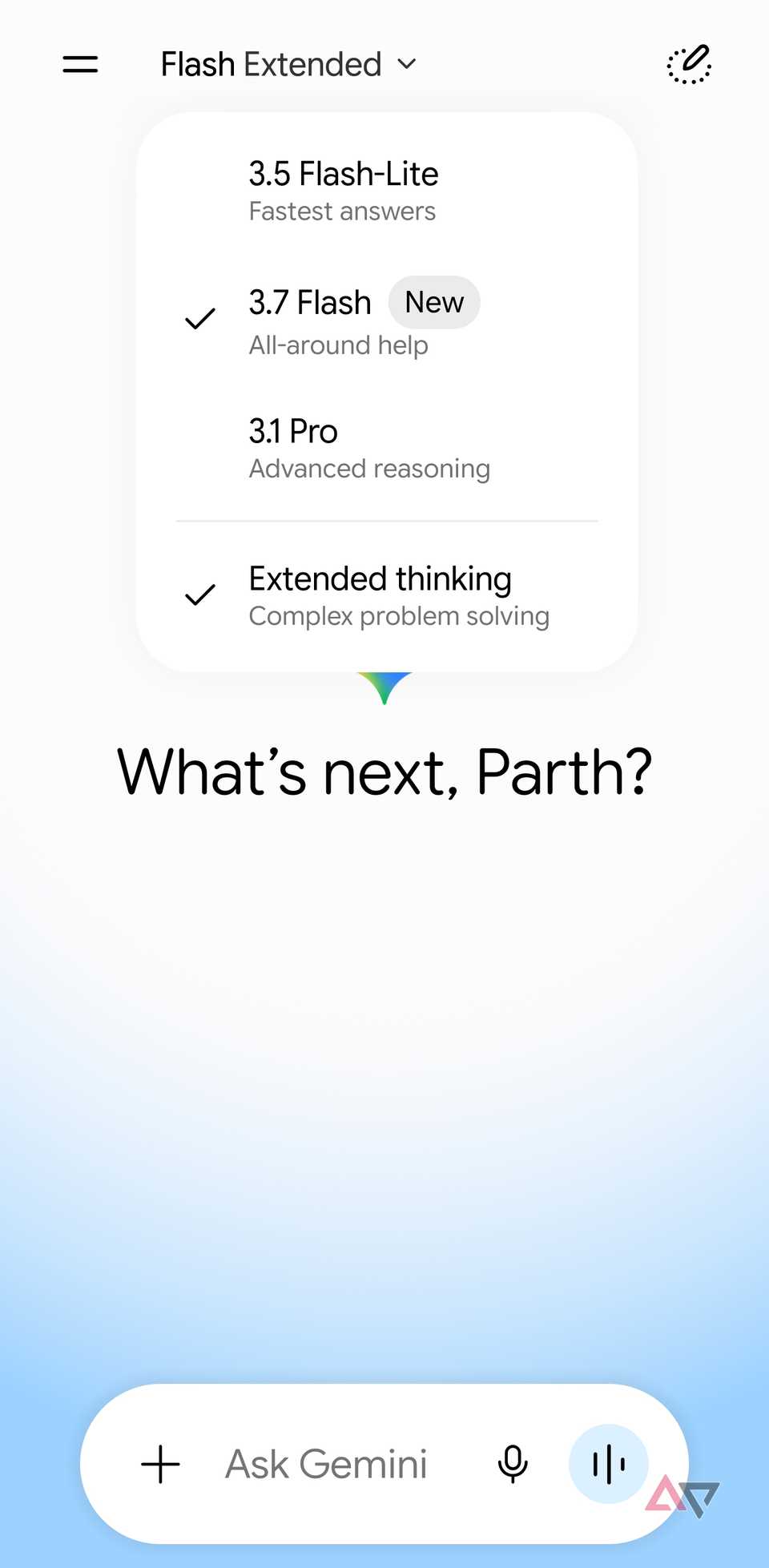
Whenever I tackle a task with multiple moving parts, I turn on Extended Thinking.
Standard Gemini is great for quick drafts or simple summaries, but it often rushes through complex prompts and misses subtle constraints.
Extended Thinking forces the model to pause, map out a silent reasoning plan, and check its own logic before returning a single word.
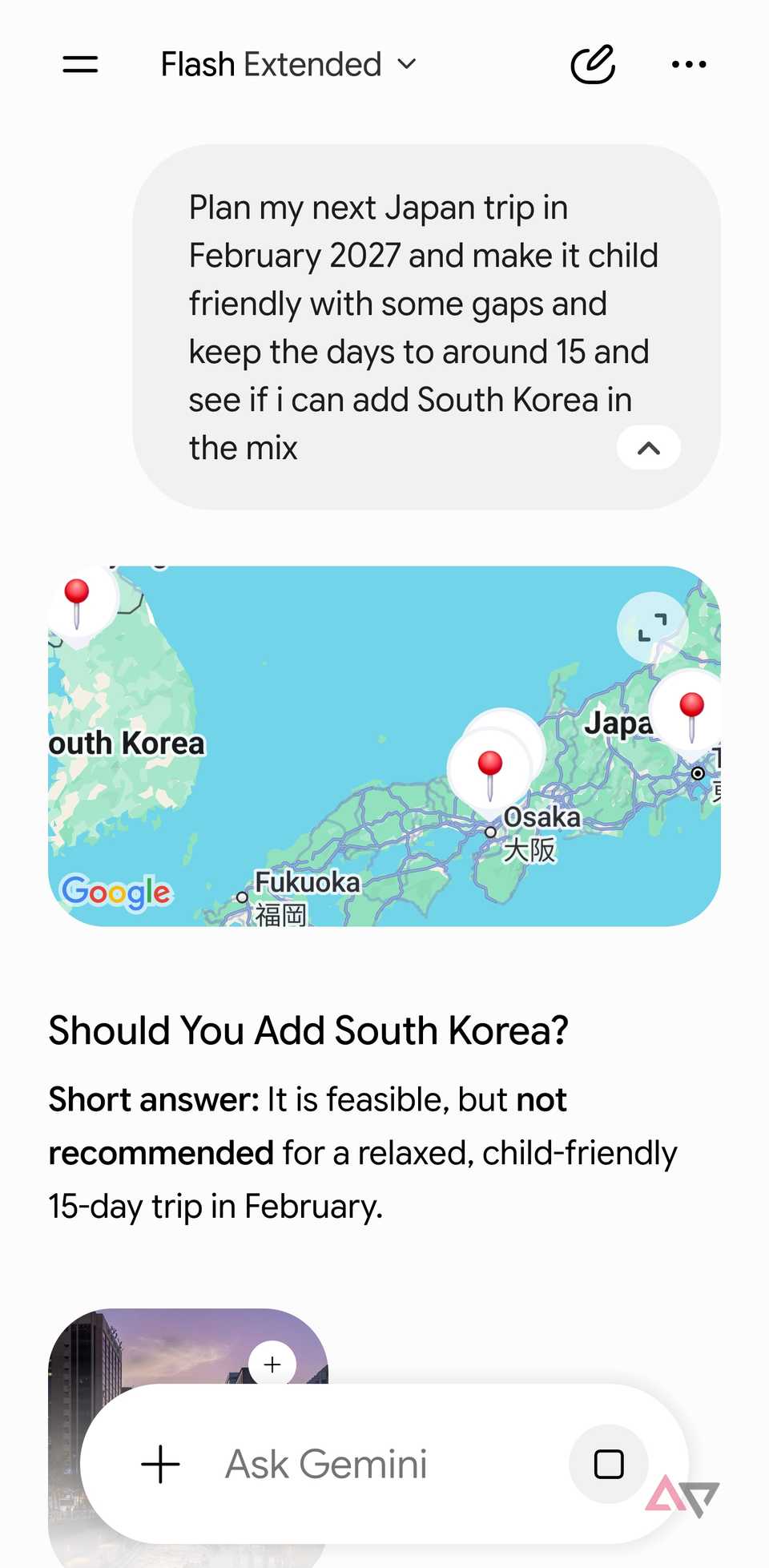
I rely on it for tasks that require strict problem-solving – like planning a multi-city travel itinerary with tight flight layovers and budget limits, or debugging a tricky formula across linked spreadsheet tabs.
For instance, when I needed to build a nested Excel formula to calculate tiered freelance project milestones with overlapping deadlines and conditional tax deductions, default Gemini missed a cutoff date and broke the formula logic.
After I switched on Extended Thinking, it mapped out the calculation order first, spotted the edge case where milestones overlapped, and delivered a clean formula that worked immediately.
The extra few seconds of processing save me from fixing broken answers later.
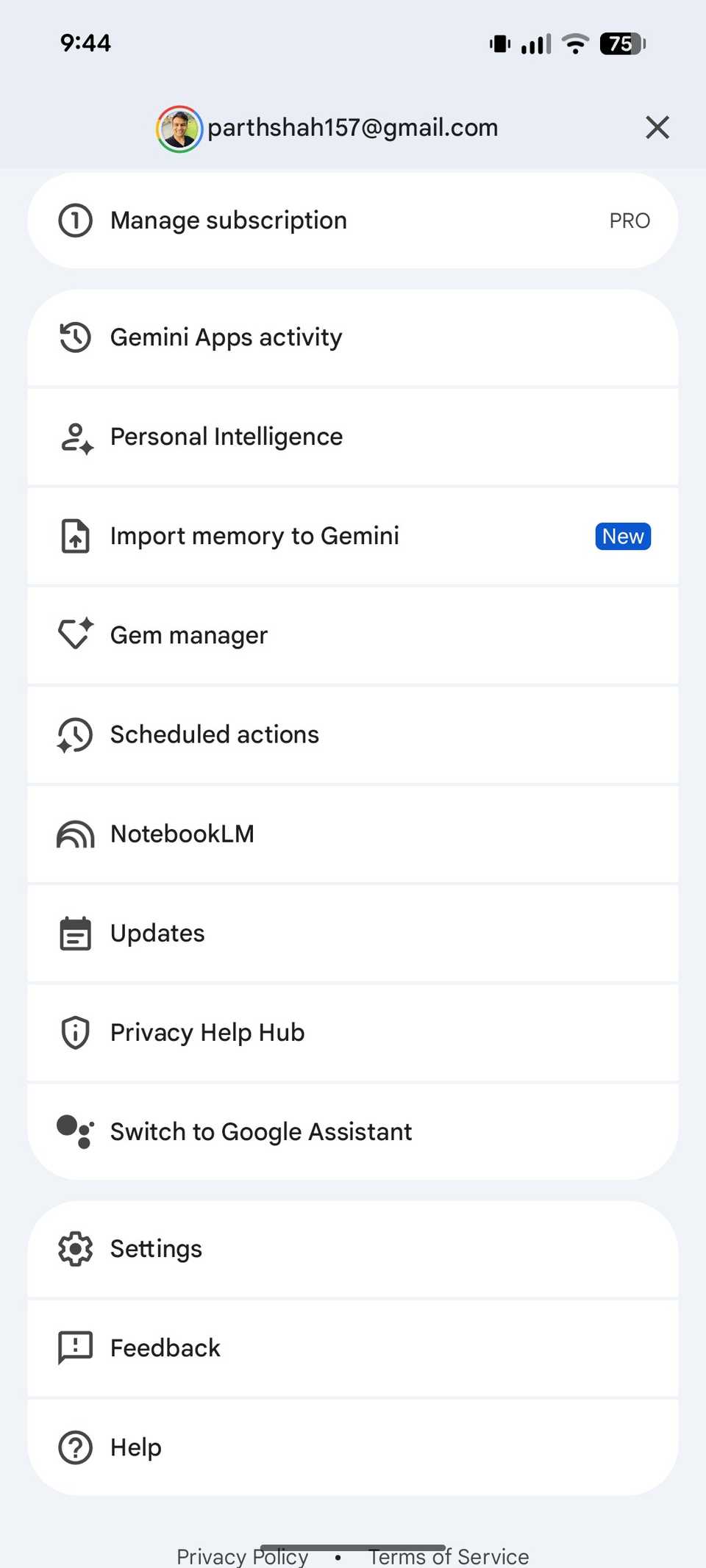
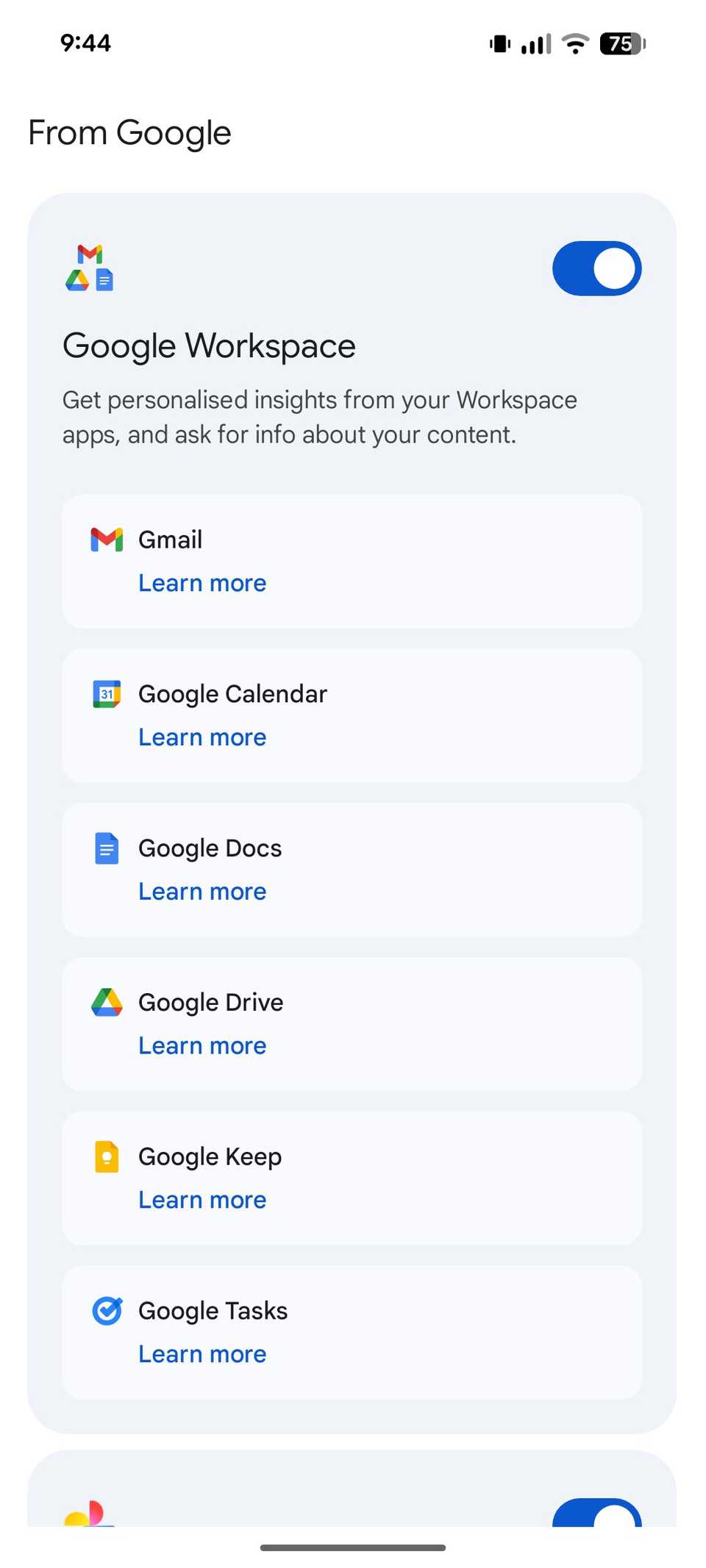
If you only use Gemini inside a blank text prompt, you are doing all the heavy lifting yourself. The real turning point for me was linking Gemini directly to the apps I use all day.
Go to Settings > Personal Intelligence > Connected apps. After you toggle on integrations for Google Workspace, WhatsApp, Maps, Spotify, and YouTube Music, Gemini shifts from a standard text generator to an actionable command center.
For example, instead of hunting through Drive folders and inbox threads, I let Gemini pull the exact context I need with "@Gmail find the invoice attached to the email from my client last Thursday and summarize the line items."
Gemini locates the attachment, parses the totals, and formats a breakdown in seconds without me ever opening Gmail or downloading a PDF.
In another example, I can ask Gemini "@Google Calendar what time is my first meeting tomorrow, and @Google Maps how long will it take to drive there from home in morning traffic?"
I can even ask Gemini to play some of the hits from Shakira on Spotify, and it does the job without breaking a sweat.
I can also take advantage of WhatsApp integration and ping a contact using voice commands. The possibilities are endless.
Connecting these tools turns Gemini into an actual hub rather than a generic AI chatbot.
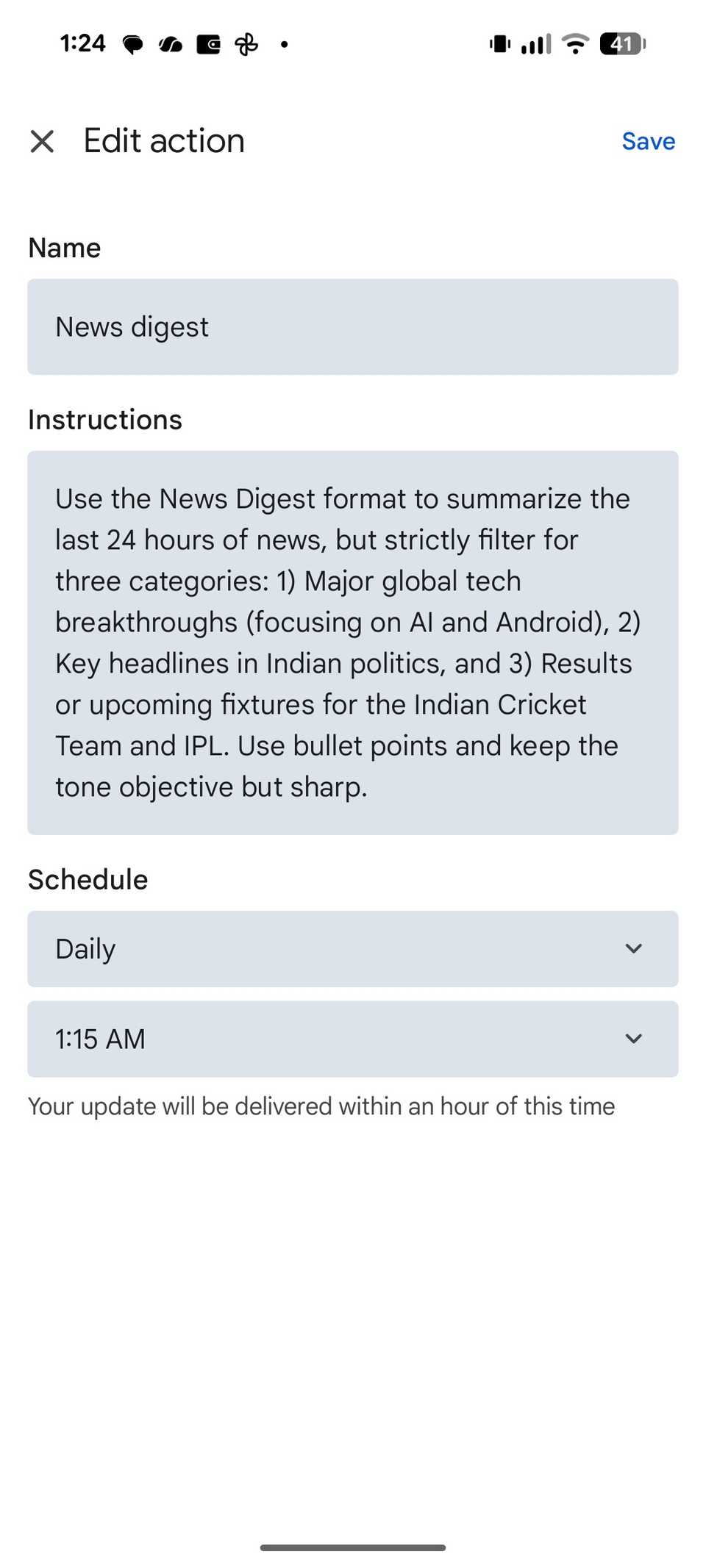
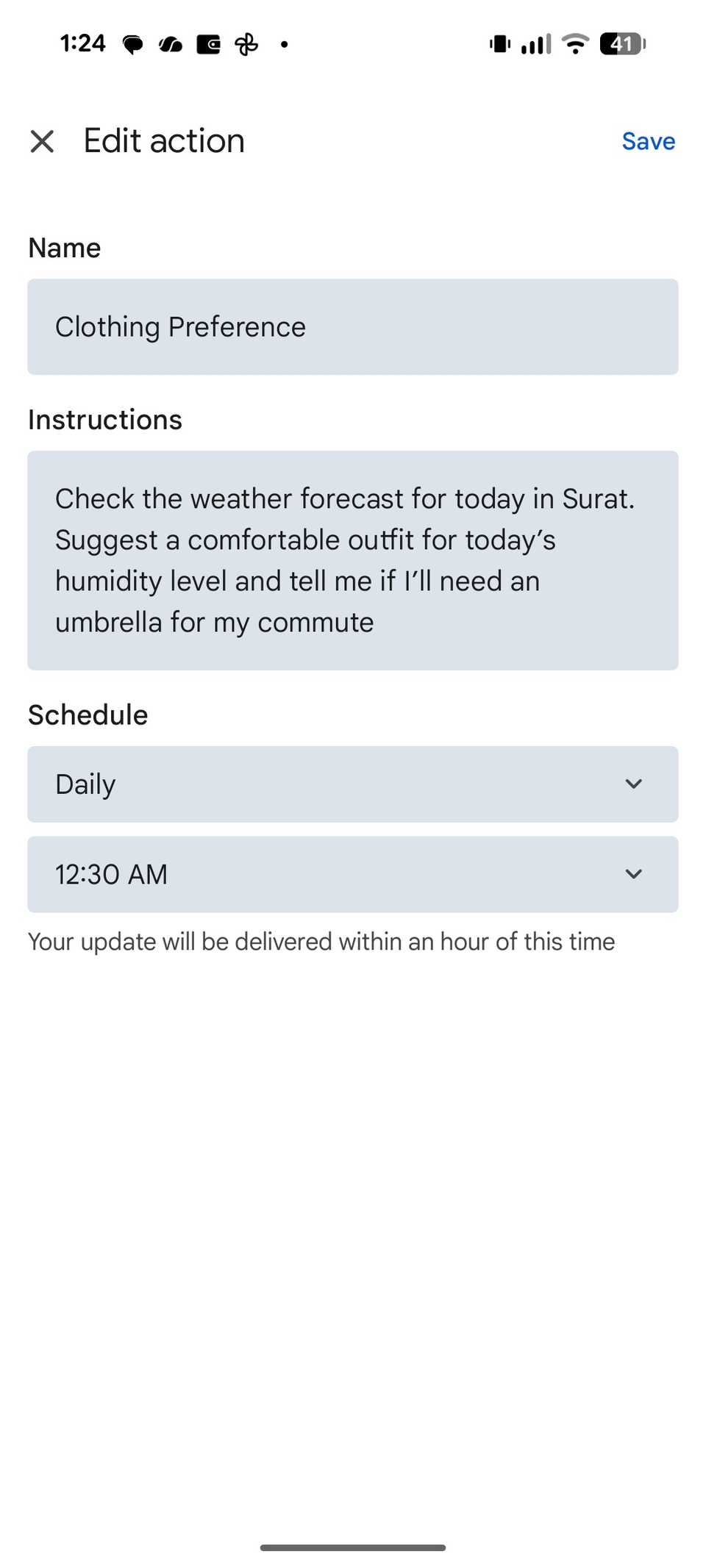
One of the easiest ways to waste time with AI is retyping the same prompts every few days.
If you find yourself asking Gemini for the same weekly digests, news recaps, or agenda reviews, Scheduled Actions automates that routine.
For example, during football season, I used to spend Saturday and Sunday mornings bouncing between sports apps, X feeds, and fantasy dashboards to see who was active.
Now, I let Gemini handle it automatically. So I headed to Gemini Settings > Scheduled actions and created a new one.
On the Instruction page, I asked Gemini to give me a comprehensive NFL weekend briefing that included top matchup storylines, stats for key players, and the Sunday broadcast schedule.
Every Saturday morning, Gemini generates the briefing and gives me a bulleted breakdown of high-impact injuries, key betting line shifts, and a clean kickoff schedule.
You can check my dedicated post to learn more about Gemini scheduled actions.
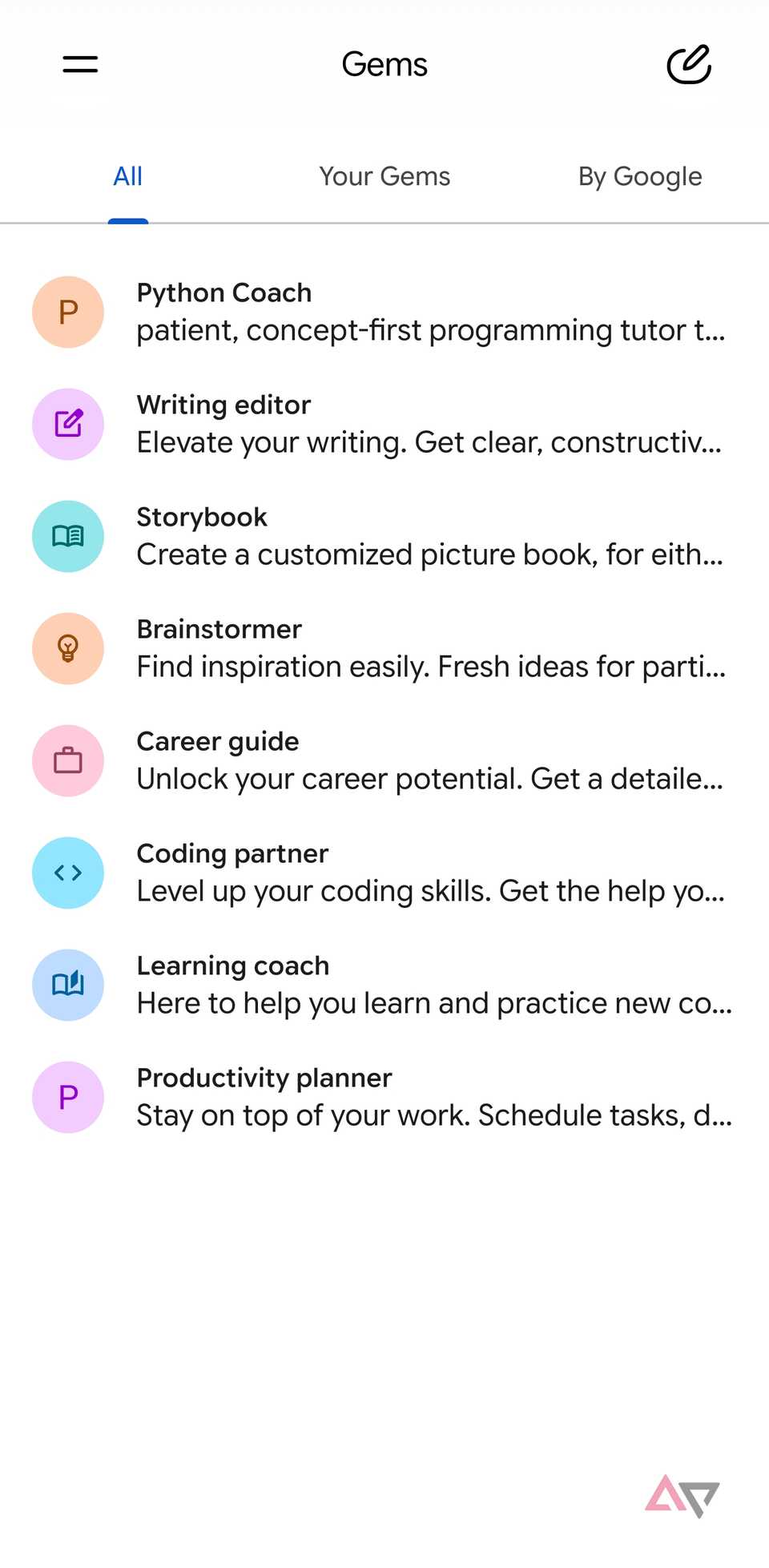
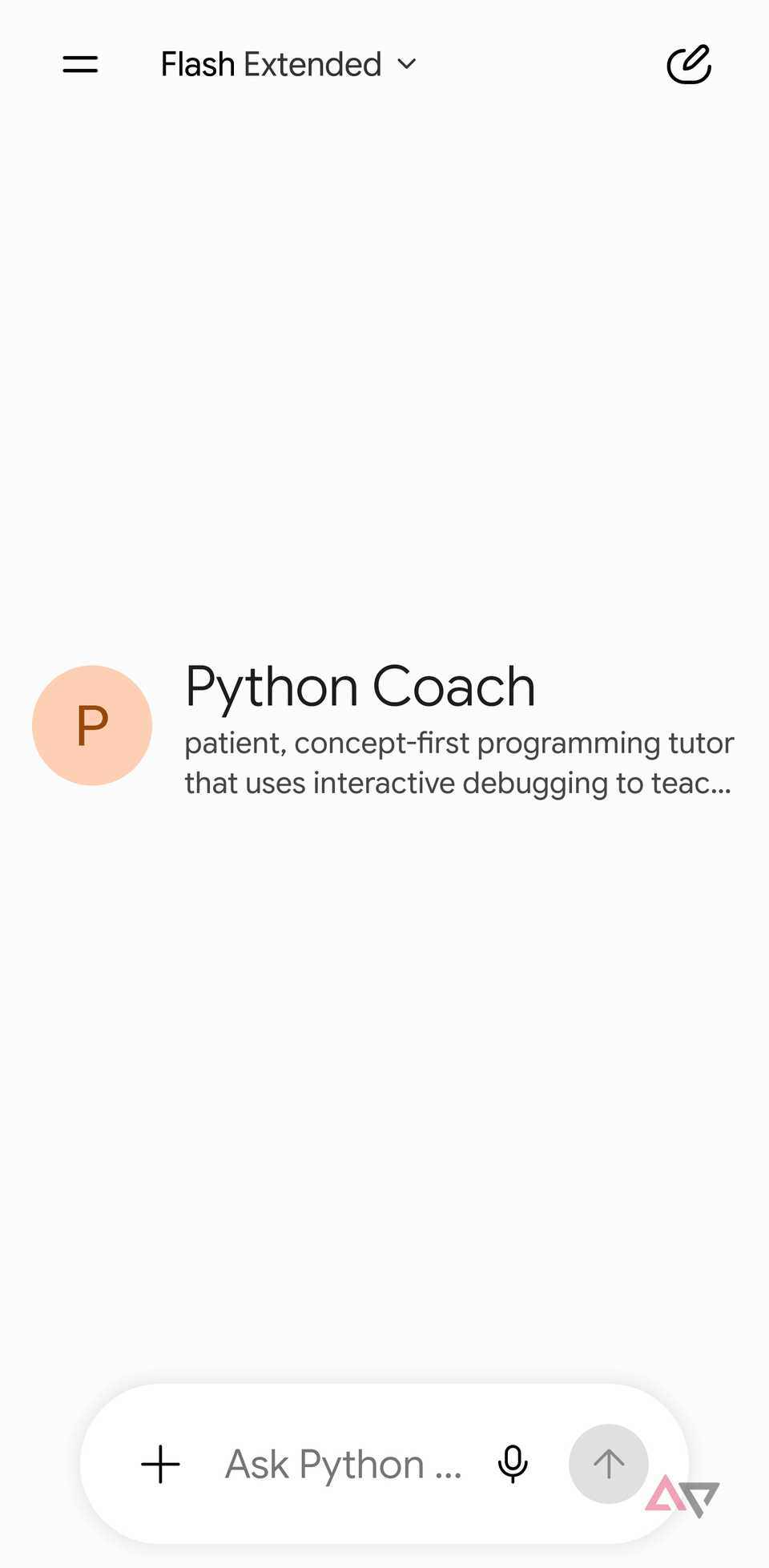
If you repeatedly type context like "Act as an editor," "Follow this formatting style," or paste the same reference documents into new chats, you are wasting time.
This is where Gems changes the game.
Instead of re-training a blank chat window every day, I build single-purpose Gems dedicated to one workflow.
I can create a copy editor Gem that's preloaded with my personal style guide, banned buzzwords, and strict instructions to keep sentences crisp.
I can even create a code refactor Gem that's tuned strictly for code review.
When configured, these Gems sit in my left sidebar. Instead of using a generic chatbot, I jump straight into an assistant that already knows the assignment.
By setting up dedicated Gems, connecting your essential apps, triggering Extended Thinking for complex tasks, and automating routines with Scheduled Actions, you stop managing the AI and start letting it manage the busywork.
These adjustments take less than 15 minutes to configure, but the payoff is immediate: fewer repetitive prompts, zero context switching, and a workspace designed entirely for your workflow.
Original article: https://www.androidpolice.com/gemini-is-decent-out-of-the-box-but-these-changes-make-it-productivity-powerhouse/ Source: Android Police